<?xml version="1.0" encoding="utf-8"?><feed xmlns="http://www.w3.org/2005/Atom" ><generator uri="https://jekyllrb.com/" version="3.10.0">Jekyll</generator><link href="http://sbhackerspace.com/feed.xml" rel="self" type="application/atom+xml" /><link href="http://sbhackerspace.com/" rel="alternate" type="text/html" /><updated>2025-10-15T14:26:27-07:00</updated><id>http://sbhackerspace.com/feed.xml</id><title type="html">#sbhackerspace</title><subtitle>The world&apos;s greatest hackerspace in Santa Barbara</subtitle><entry><title type="html">Moving To A New Shop</title><link href="http://sbhackerspace.com/2025/07/25/moving-to-a-new-shop/" rel="alternate" type="text/html" title="Moving To A New Shop" /><published>2025-07-25T00:00:00-07:00</published><updated>2025-07-25T00:00:00-07:00</updated><id>http://sbhackerspace.com/2025/07/25/moving-to-a-new-shop</id><content type="html" xml:base="http://sbhackerspace.com/2025/07/25/moving-to-a-new-shop/"><![CDATA[<h1 id="santa-barbara-hackerspace-building-the-future-of-making-in-goleta">Santa Barbara Hackerspace: Building the Future of Making in Goleta</h1>

<p>2025 has been a year of big changes and bigger plans for Santa Barbara Hackerspace.<br />
As many of you know, we’ve moved into our new home at <strong>302 Pine Ave, Goleta</strong>. This new space marks the next chapter in our mission: to create a vibrant, accessible workshop and community hub for makers, tinkerers, artists, and inventors of all ages.</p>

<h2 id="why-we-moved">Why We Moved</h2>
<p>Our old space served us well for years, but the building sold in April and the new management set rent prices above what we could reasonably afford. The good news is the new Pine Ave location gives us:</p>

<ul>
  <li><strong>More square footage</strong> for tools and equipment (~3,700sq/ft =&gt; ~5,000sq/ft)</li>
  <li>Dedicated rooms for electronics, wood, and metal work</li>
  <li>A larger community classroom and dedicated meeting area</li>
  <li>Future capacity for even more tools</li>
</ul>

<p>It’s a blank canvas, and we’re already turning it into something amazing.</p>

<h2 id="what-were-working-on">What We’re Working On</h2>
<p>Since moving in, we’ve been:</p>

<ul>
  <li>Designing safe, accessible workspaces</li>
  <li>Planning <strong>public classes and workshops</strong> that anyone can attend</li>
  <li>Laying out zones for robotics, electronics, woodshop, metal fabrication, textiles, and more</li>
</ul>

<h2 id="why-it-matters">Why It Matters</h2>
<p>Santa Barbara Hackerspace is more than a workshop.<br />
We’re a <strong>community resource</strong> where people can:</p>

<ul>
  <li><strong>Learn</strong> hands-on skills</li>
  <li><strong>Share</strong> knowledge and collaborate</li>
  <li><strong>Build</strong> prototypes, projects, and ideas that otherwise wouldn’t leave the napkin</li>
</ul>

<p>Makerspaces like ours help bridge the gap between ideas and real-world impact. Whether you’re a high school student wanting to learn soldering, an entrepreneur building a prototype, or a hobbyist perfecting a passion project, this is your space.</p>

<h2 id="how-you-can-help">How You Can Help</h2>
<p>We’re a non-profit and run almost entirely on member dues and donations. Right now, our biggest needs are:</p>

<ul>
  <li><strong>Funding</strong> for tools, safety equipment, and infrastructure <a href="https://store.sbhackerspace.com">Donate Here</a></li>
  <li><strong>Volunteers</strong> to help set up the new space</li>
  <li><strong>Community</strong> support to spread the word</li>
</ul>

<p>If you’d like to contribute - financially, with tools, or with your time—please reach out to us. Every bit helps.</p>

<h2 id="whats-next">What’s Next</h2>
<p>Our immediate goals for the rest of 2025:</p>

<ul>
  <li>Complete unpacking and tool setup</li>
  <li>Host a 15th anniversary / grand opening party in mid August</li>
  <li>Open the doors wide to new and current members</li>
</ul>

<p>We’re building something that will serve Santa Barbara and Goleta for years to come. The energy and creativity in this community is unmatched, and with your support, this new hackerspace will become a hub for it all.</p>

<hr />

<p><strong>Visit us at 302 Pine Ave, Goleta</strong><br />
Follow along as we transform an empty building into a buzzing, creative workshop—and join us in building the future.</p>]]></content><author><name>swiss</name></author><category term="news" /><summary type="html"><![CDATA[Santa Barbara Hackerspace: Building the Future of Making in Goleta]]></summary></entry><entry><title type="html">Raspberry Pi Wi-Fi Guest Code Generator</title><link href="http://sbhackerspace.com/2017/02/08/raspberry-pi-wi-fi-guest-code-generator/" rel="alternate" type="text/html" title="Raspberry Pi Wi-Fi Guest Code Generator" /><published>2017-02-08T00:00:00-08:00</published><updated>2017-02-08T00:00:00-08:00</updated><id>http://sbhackerspace.com/2017/02/08/raspberry-pi-wi-fi-guest-code-generator</id><content type="html" xml:base="http://sbhackerspace.com/2017/02/08/raspberry-pi-wi-fi-guest-code-generator/"><![CDATA[<p>Over the weekend we built a WiFi guest code generator for our Unifi wireless network. The setup is built around a Raspberry Pi and USB thermal receipt printer. You can see the build in action below:</p>

<p>The Raspberry Pi runs a simple python script waiting for an input from the button press. Once pressed the script contacts the Unifi controller, requests a wireless access code, adds some formatting and prints. The code for the Raspberry Pi and Unifi can be found on <a href="https://gist.github.com/gholms/760fa4f6621c91001b9f2b449e4e4155">GitHub.</a> The thermal printer is available from <a href="https://www.amazon.com/dp/B01LWLJPNS/ref=cm_sw_r_cp_apa_YS6Lyb64RM4G7">Amazon.</a></p>

<p>With that, lets get into how to do it.</p>

<h2 id="connecting-the-button">Connecting the Button</h2>

<p>Required Tools:</p>
<ul>
  <li>Soldering iron</li>
</ul>

<p>Required Hardware:</p>
<ul>
  <li>Momentary pushbutton (LED-lit optional)</li>
  <li>10k ohm resistor (1/4 watt)</li>
  <li>22 gauge wire</li>
</ul>

<p>Optional Hardware:
heatshrink
5×2 2.54mm (.1″) female header</p>

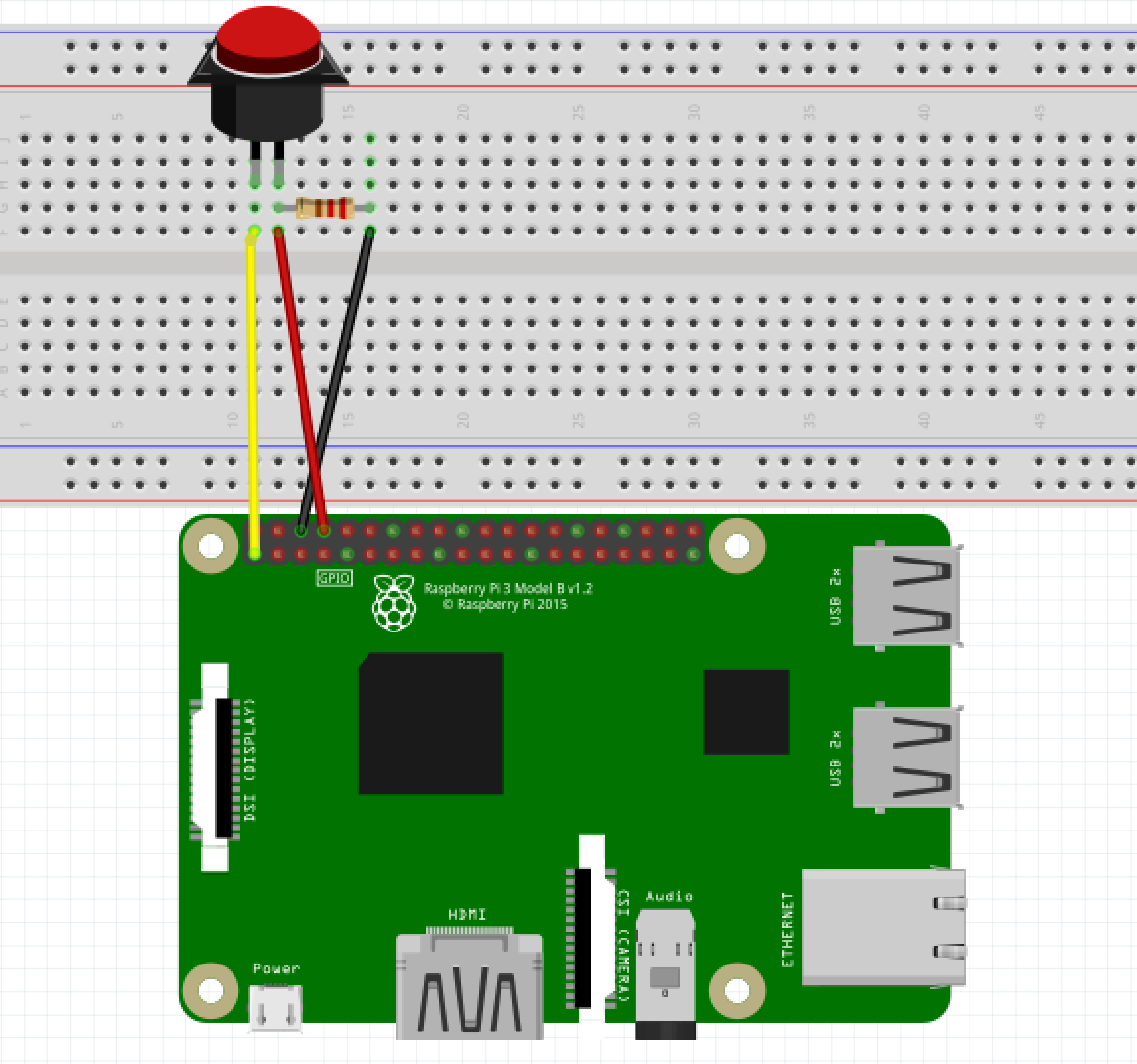
<p>The button requires only 3 pins on the Pi to be connected and a 10k ohm resistor. Pin 2 (3.3V) pin 5 (Ground) and pin 7 (GPIO 14 / TX). Pin 2 is used to Power the button LED and provide the positive rail for the common pin on the momentary switch. Pin 5 to provide a ground for the LED and to connect one side of the 10k ohm resistor to. And pin 7 to be connected to the Normally Open (NO) pin of the switch as well as the other leg of the 10k resistor to prevent the GPIO pin from floating. We used a 2×5 pin female 2.54 mm (.1″) connector and some 22 gauge wire to connect everything.</p>

<p>Here’s the fritzing verion:</p>

<p><img src="/assets/images/2017-02-08-raspberry-pi-wifi-guest-code-generator/fritzing.png" width="50%" /></p>

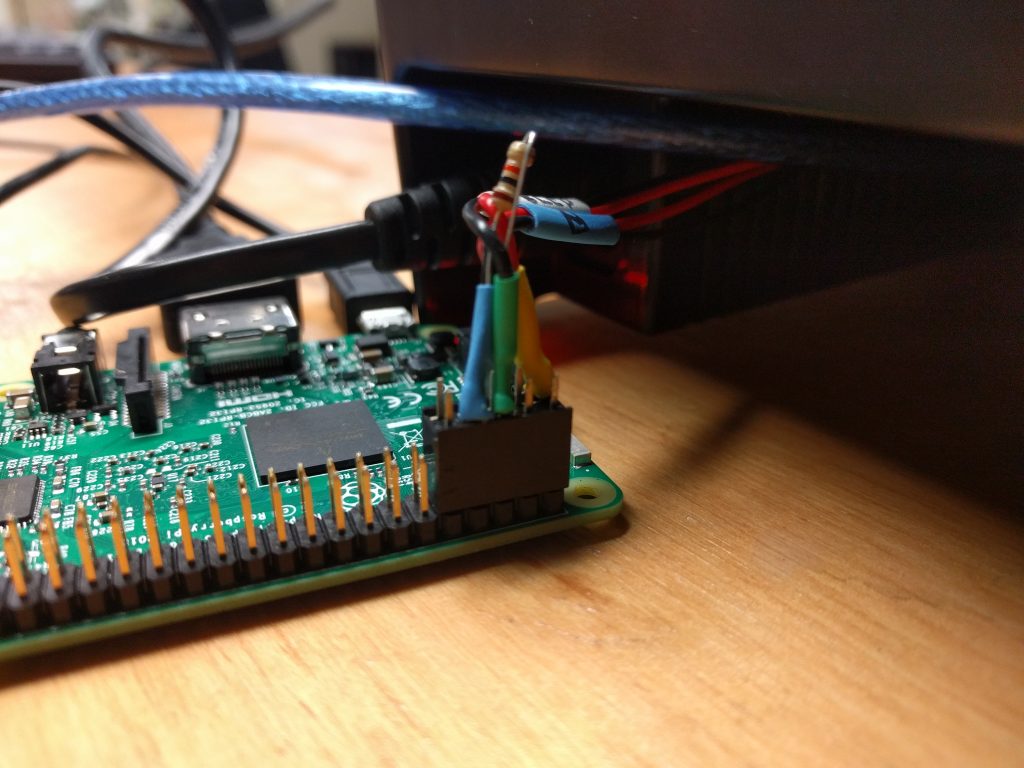
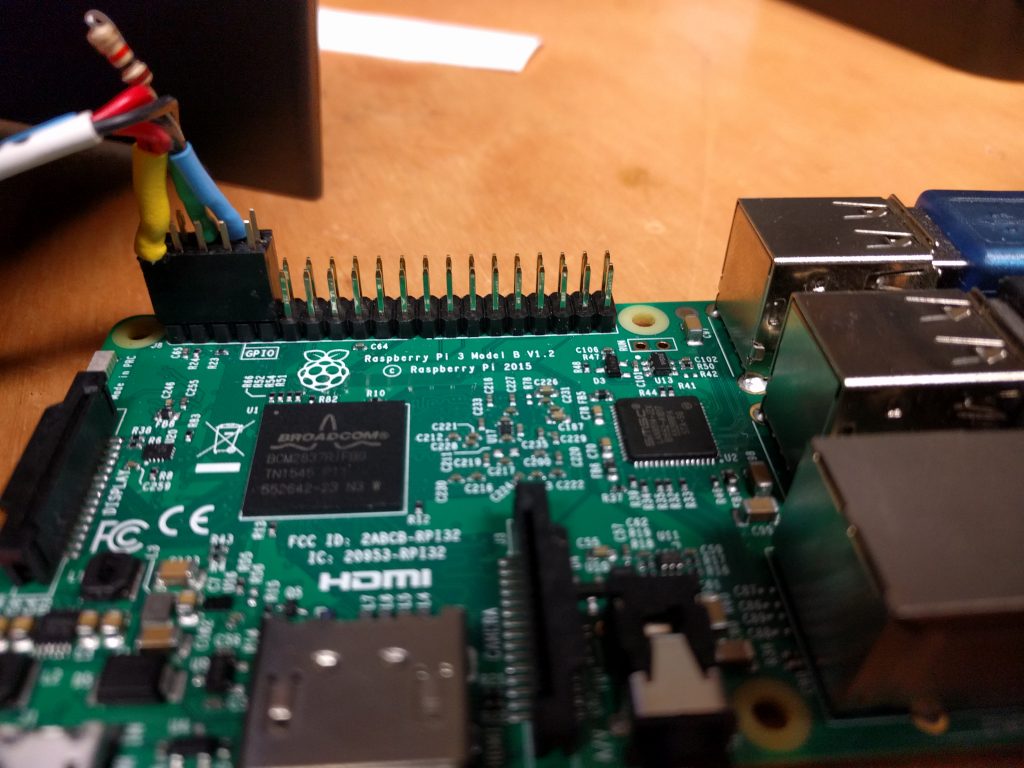
<p>Closeup of the completed wiring harness on the Pi for reference:</p>

<p><img src="/assets/images/2017-02-08-raspberry-pi-wifi-guest-code-generator/closeup1.jpg" width="45%" />
<img src="/assets/images/2017-02-08-raspberry-pi-wifi-guest-code-generator/closeup2.jpg" width="45%" /></p>

<p>Now that everything is connected together, it’s time to install the software that powers it.</p>

<h2 id="setting-up-the-controller">Setting Up the Controller</h2>

<p>The script that runs on the controller accesses the controller’s MongoDB database directly, so first, install git as well as the library for that.  Our wireless controller runs CentOS, where the commands to do that look like the following:</p>

<div class="language-console highlighter-rouge"><div class="highlight"><pre class="highlight"><code><span class="gp">#</span><span class="w"> </span>yum <span class="nb">install </span>http://dl.fedoraproject.org/pub/epel/epel-release-latest-7.noarch.rpm
<span class="gp">#</span><span class="w"> </span>yum <span class="nb">install </span>git pymongo
</code></pre></div></div>

<p>With the libraries installed, it’s time to grab the script:</p>

<div class="language-console highlighter-rouge"><div class="highlight"><pre class="highlight"><code><span class="gp">#</span><span class="w"> </span>git clone https://gist.github.com/gholms/760fa4f6621c91001b9f2b449e4e4155 wifi-button
<span class="gp">#</span><span class="w"> </span><span class="nb">cd </span>wifi-button
</code></pre></div></div>

<p>The script needs to know the internal ID number of the site in your Unifi controller in order to add everything to the database correctly. Once you have this number, open the script in your favorite text editor and edit the UNIFI_SITE line.</p>

<div class="language-console highlighter-rouge"><div class="highlight"><pre class="highlight"><code><span class="gp">#</span><span class="w"> </span>ed voucherator.py
</code></pre></div></div>

<p>Finally, install the script and tell systemd to run it when the system boots.</p>

<div class="language-console highlighter-rouge"><div class="highlight"><pre class="highlight"><code><span class="gp">#</span><span class="w"> </span><span class="nb">cp </span>voucherator.py /usr/local/bin/voucherator
<span class="gp">#</span><span class="w"> </span><span class="nb">chmod</span> +x /usr/local/bin/voucherator
<span class="gp">#</span><span class="w"> </span><span class="nb">cp </span>voucherator.service /usr/local/lib/systemd/system/voucherator.service
<span class="gp">#</span><span class="w"> </span>systemctl daemon-reload
<span class="gp">#</span><span class="w"> </span>systemctl start voucherator.service
<span class="gp">#</span><span class="w"> </span>systemctl <span class="nb">enable </span>voucherator.service
</code></pre></div></div>

<p>Don’t forget to allow traffic through the controller’s firewall if necessary. By default, the script uses TCP port 8080.</p>

<p>With the controller’s setup complete, it’s time to set up the Raspberry Pi to manage button presses and the receipt printer.</p>

<h2 id="setting-up-the-pi">Setting Up the Pi</h2>

<p>To install the script on the Raspberry Pi open the terminal or SSH in from another computer.</p>

<p>Next, install the script’s dependencies that are packaged as part of Raspbian. These commands will vary if your Pi happens to be running another operating system.</p>

<div class="language-console highlighter-rouge"><div class="highlight"><pre class="highlight"><code><span class="gp">$</span><span class="w"> </span><span class="nb">sudo </span>apt-get update
<span class="gp">$</span><span class="w"> </span><span class="nb">sudo </span>apt-get <span class="nb">install </span>git build-essential python3-rpi.gpio
</code></pre></div></div>

<p>Now install the python printer interface and requests library.</p>

<div class="language-console highlighter-rouge"><div class="highlight"><pre class="highlight"><code><span class="gp">$</span><span class="w"> </span>pip <span class="nb">install </span>python-escpos requests
</code></pre></div></div>

<p>With the repositories installed its time to grab the scripts.</p>

<div class="language-console highlighter-rouge"><div class="highlight"><pre class="highlight"><code><span class="gp">$</span><span class="w"> </span>git clone https://gist.github.com/gholms/760fa4f6621c91001b9f2b449e4e4155 wifi-button
<span class="gp">$</span><span class="w"> </span><span class="nb">cd </span>wifi-button
</code></pre></div></div>

<p>The top of the button-managing script has a couple settings that you should tweak as well.</p>

<div class="language-console highlighter-rouge"><div class="highlight"><pre class="highlight"><code><span class="gp">$</span><span class="w"> </span>ed buttond.py
</code></pre></div></div>

<p>At a minimum, you should edit the <code class="language-plaintext highlighter-rouge">VOUCHER_URL</code> setting to tell it where to find your voucher-creating server. For example, if you need to access it using the IP address 192.0.2.1 then that setting may look something like the following:</p>

<div class="language-plaintext highlighter-rouge"><div class="highlight"><pre class="highlight"><code>VOUCHER_URL = 'http://192.0.2.1:8080/voucher/new'
</code></pre></div></div>

<p>The script also assumes you have a cool logo installed at /srv/voucherprinter/logo.jpg. If you have such a logo and you put it somewhere else instead, edit the <code class="language-plaintext highlighter-rouge">LOGO_PATH</code> setting. If you do not have such a logo, comment out the line of code that attempts to print it further down in the script. We should improve this in the code later.</p>

<p>Next, install the script and set it up as a service so it can run when the Raspberry Pi starts:</p>

<div class="language-console highlighter-rouge"><div class="highlight"><pre class="highlight"><code><span class="gp">$</span><span class="w"> </span><span class="nb">sudo cp </span>buttond.py /usr/local/bin/buttond
<span class="gp">$</span><span class="w"> </span><span class="nb">sudo chmod</span> +x /usr/local/bin/buttond
<span class="gp">$</span><span class="w"> </span><span class="nb">sudo cp </span>buttond.service /usr/local/lib/systemd/system/buttond.service
<span class="gp">$</span><span class="w"> </span><span class="nb">sudo </span>systemctl daemon-reload
<span class="gp">$</span><span class="w"> </span><span class="nb">sudo </span>systemctl start buttond.service
<span class="gp">$</span><span class="w"> </span><span class="nb">sudo </span>systemctl <span class="nb">enable </span>buttond.service
</code></pre></div></div>

<p>Now connect the Pi to your network, press the button, and see if it works!</p>

<p>Here’s our finished printer with a sleek built in button and all the Raspberry Pi bits tucked into the printer for inspiration:</p>

<iframe src="https://www.youtube.com/embed/njwxZxf7B10?rel=0" allowfullscreen="" width="560" height="315" frameborder="0"></iframe>]]></content><author><name>swiss</name></author><category term="pi" /><summary type="html"><![CDATA[Over the weekend we built a WiFi guest code generator for our Unifi wireless network. The setup is built around a Raspberry Pi and USB thermal receipt printer. You can see the build in action below:]]></summary></entry><entry><title type="html">Eagle CAD Class</title><link href="http://sbhackerspace.com/2015/08/20/eagle-cad-class/" rel="alternate" type="text/html" title="Eagle CAD Class" /><published>2015-08-20T00:00:00-07:00</published><updated>2015-08-20T00:00:00-07:00</updated><id>http://sbhackerspace.com/2015/08/20/eagle-cad-class</id><content type="html" xml:base="http://sbhackerspace.com/2015/08/20/eagle-cad-class/"><![CDATA[<p><img src="/assets/images/2015-08-20-eagle-cad-class/eagle-cad-class.jpg" class="fit image" />
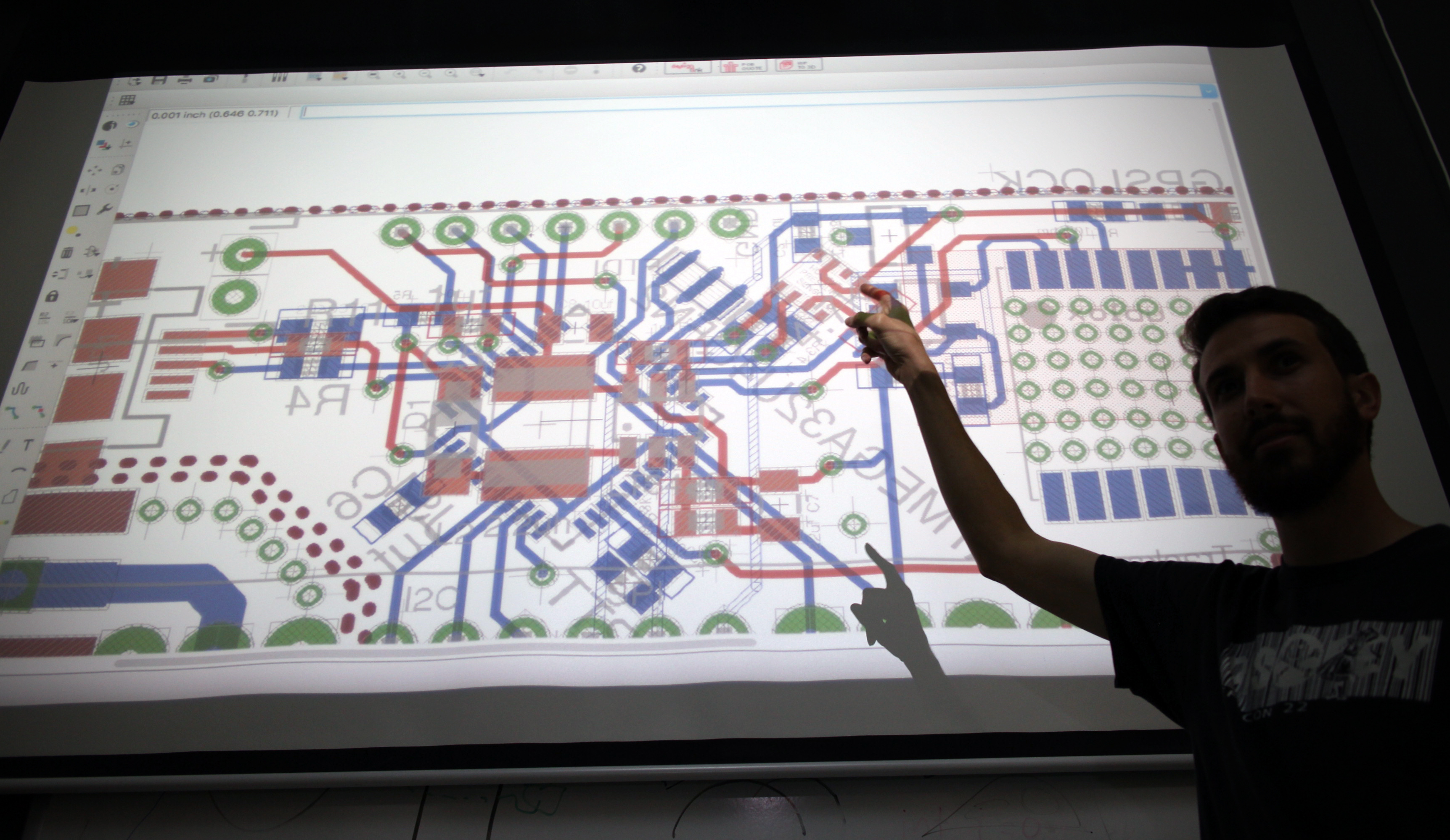
To Sign up please visit: <a href="http://sbhackerspace.com/shop/">http://sbhackerspace.com/shop/</a>
and select the Eagle CAD class and checkout, payment is available via PayPal, credit, cash, or check. If you would like to pay with cash or check please email <a href="mailto:info@sbhackerspace.com">info@sbhackerspace.com</a> so we can reserver your spot for the class.</p>

<p>This is a four week class, constisting of a one hour class per week. The class assumes zero knowledge of Eagle CAD and PCB / circuit design, though the depth of the class will likely be informative for those familiar with Eagle CAD. PCBs are the heart of most every modern electronic device and being able to create them can be an extremely useful skill for executing most any electronic device.</p>

<p><a href="https://cadsoft.io/">Eagle CAD</a> is a PCB (Printed Circuit Board) design tool with a version of the software available for free. It is widely used by the hobbyist community and is a powerful tool for PCB creation. Eagle CAD includes tools for creating a schematic and generating a PCB from the schematic.</p>

<p>Below is the class outline which outlines the goals of the class and what will be covered. The class will be taught by Mike “Swiss” Bales and other SB Hackerspace members.</p>

<h2 id="an-intro-to-using-eagle-cad-to-design-circuits-and-pcbs">An Intro to Using Eagle CAD to design circuits and PCBs</h2>

<h3 id="class-outline-and-goals">Class Outline and Goals:</h3>

<p>The goal of this class is to teach participants with no CAD or circuit design knowledge the necessary skills to take an idea and develop it into a working circuit / PCB. PCBs (Printed Circuit Boards) are an integral part of nearly all modern electronic devices. Eagle CAD is one of the most popular entry level tools available for developing schematics and PCBs. The class will cover every step of the PCB design process from schematic design, PCB layout, production, and assembly.</p>

<h3 id="prerequisites">Prerequisites:</h3>

<p>A computer capable of running Eagle CAD (specs and download available at: http://www.cadsoftusa.com/download-eagle/ )</p>

<p>A desire to learn how to create an electronic device with a PCB</p>

<h3 id="class-schedule">Class Schedule:</h3>

<p>The class will be held over the course of three weeks, with one, one hour and a half classes per week. Classes start Thursday 7/7/16 with the next two on the following Thursday evenings (7/14  and 7/21)</p>

<h4 id="class-schedule-1">Class Schedule:</h4>

<p>Class 1:</p>

<p>Why use Eagle CAD</p>

<p>Installing Eagle CAD (on Windows, Mac, and Linux)</p>

<p>Navigating the Eagle UI</p>

<p>Creating a new project, Schematic, and PCB</p>

<p>Installing additional libraries</p>

<p>Using Github for revision control and collaboration</p>

<p>Class 2:</p>

<p>Adding parts to a schematic</p>

<p>Connecting components and nets</p>

<p>Schematic best practices</p>

<p>Creating a PCB from schematic</p>

<p>Part placement and signal routing</p>

<p>PCB layout best practices</p>

<p>Class 3:</p>

<p>Working in 2 layers, Vias, Planes</p>

<p>Assembling a completed PCB</p>

<p>Making a PCB at home / sending a PCB for manufacture</p>

<p>Soldering</p>

<p>Debugging PCB errors  and iterating designs</p>

<h3 id="class-fee">Class Fee:</h3>

<p>The class fee is $25 for non-members and  covers the materials included in the class and a fee to help fund the space and make more classes like this possible.</p>

<p>SBHX member’s fee is $20</p>

<p>We want to make our classes as available as possible, if you would like to attend the class but are unable to pay the fee please email us for other arrangements.</p>]]></content><author><name>swiss</name></author><category term="classes" /><summary type="html"><![CDATA[To Sign up please visit: http://sbhackerspace.com/shop/ and select the Eagle CAD class and checkout, payment is available via PayPal, credit, cash, or check. If you would like to pay with cash or check please email info@sbhackerspace.com so we can reserver your spot for the class.]]></summary></entry></feed>